Updated July 10, 2026 · CensorMate Blog
How to Remove Profanity from YouTube Videos [2026]
One curse word in the wrong place can cost a video most of its ad revenue. This guide covers both ways to get profanity out of your YouTube videos — the three-minute AI method and the traditional editor workflow — plus the YouTube-specific rules that decide whether your video earns.
Why It’s Worth the Three Minutes
Keep your monetization
Profanity is the most common trigger for YouTube’s limited-ads (yellow icon) rating. Strong language early in the video is weighted heaviest — details in our full demonetization guide.
Reach wider audiences
Flagged language can age-restrict your video, exclude it from Restricted Mode (schools, libraries, parental controls), and reduce recommendation reach.
Rank better in search
Advertiser-friendly videos are eligible for more surfaces — and yellow-icon videos anecdotally underperform in browse/suggested traffic.
Stay sponsor-safe
Brand deals now routinely include content-standards clauses that cover your whole channel, not just sponsored segments.
Method 1: AI-Powered Censoring (Fastest — and Free)
The modern workflow: censor the exported video before upload with CensorMate, which finds every word on your list using AI that runs entirely in your browser.
Step 1: Load your export
Drag your final cut into CensorMate. Add the words to remove — type them, load the built-in profanity pack, or upload your own list.
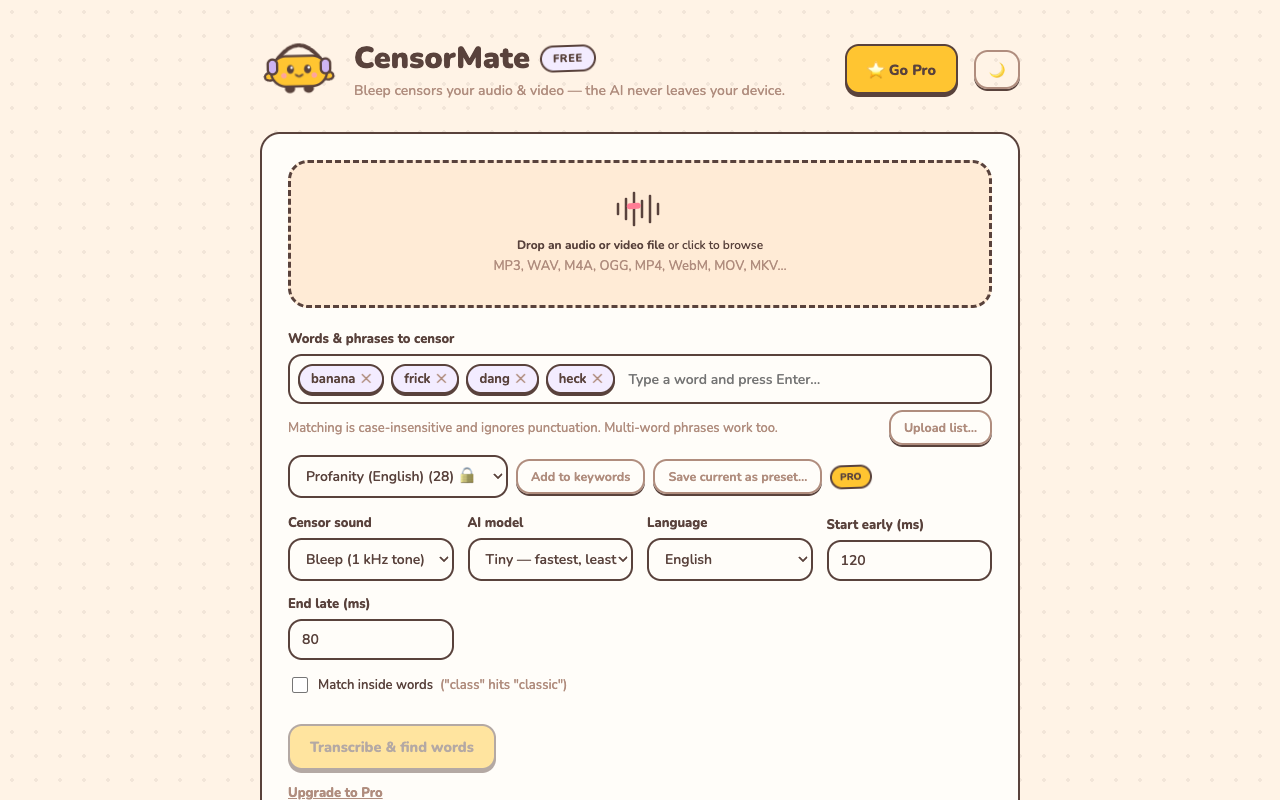
MP4, WebM, and MOV all work — use whatever your editor exports.
Step 2: Review the AI’s findings
The transcript shows every match highlighted with word-level timing. Click to toggle anything — spare the quote that needs its word, catch the mumble the AI missed.
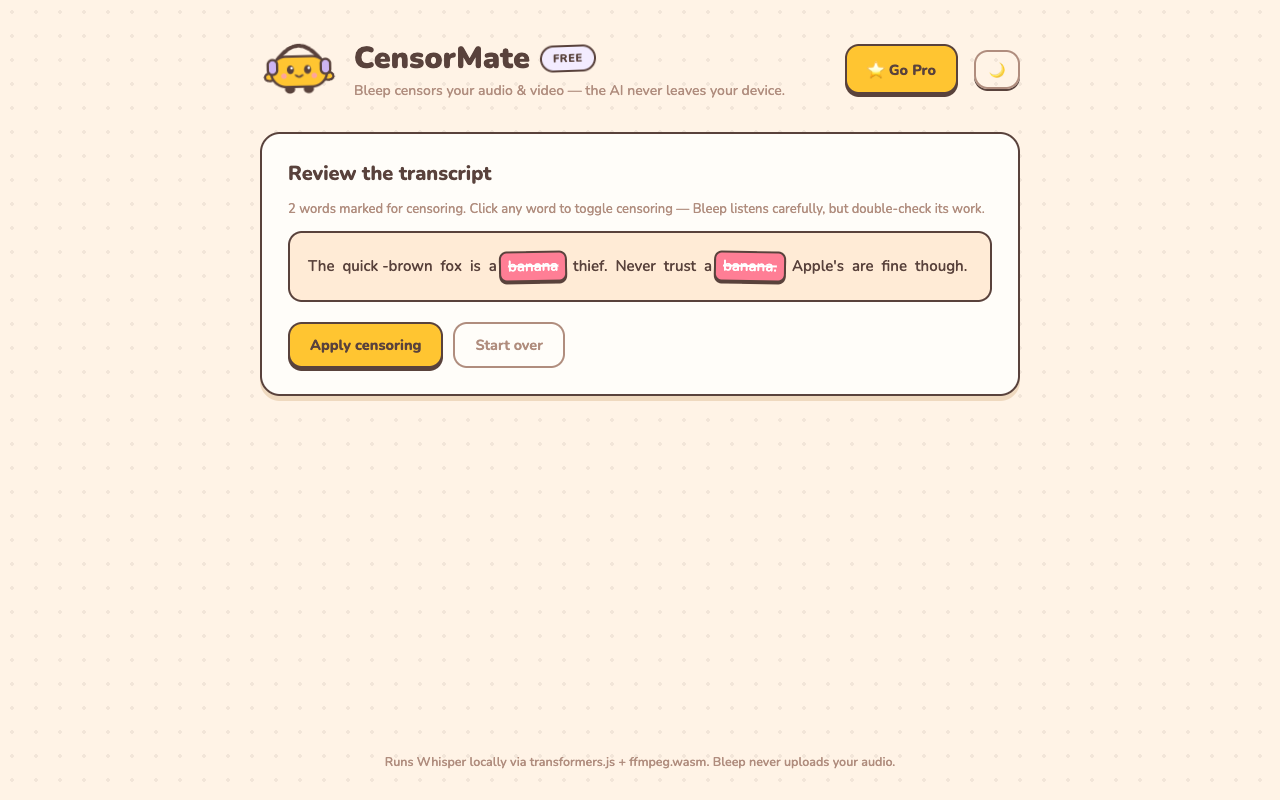
Nothing is censored until you approve it.
Step 3: Export and upload
Bleep or silence, your choice. The video stream isn’t re-encoded — no quality loss, no double-compression before YouTube’s own encode. Download and upload to YouTube as normal.
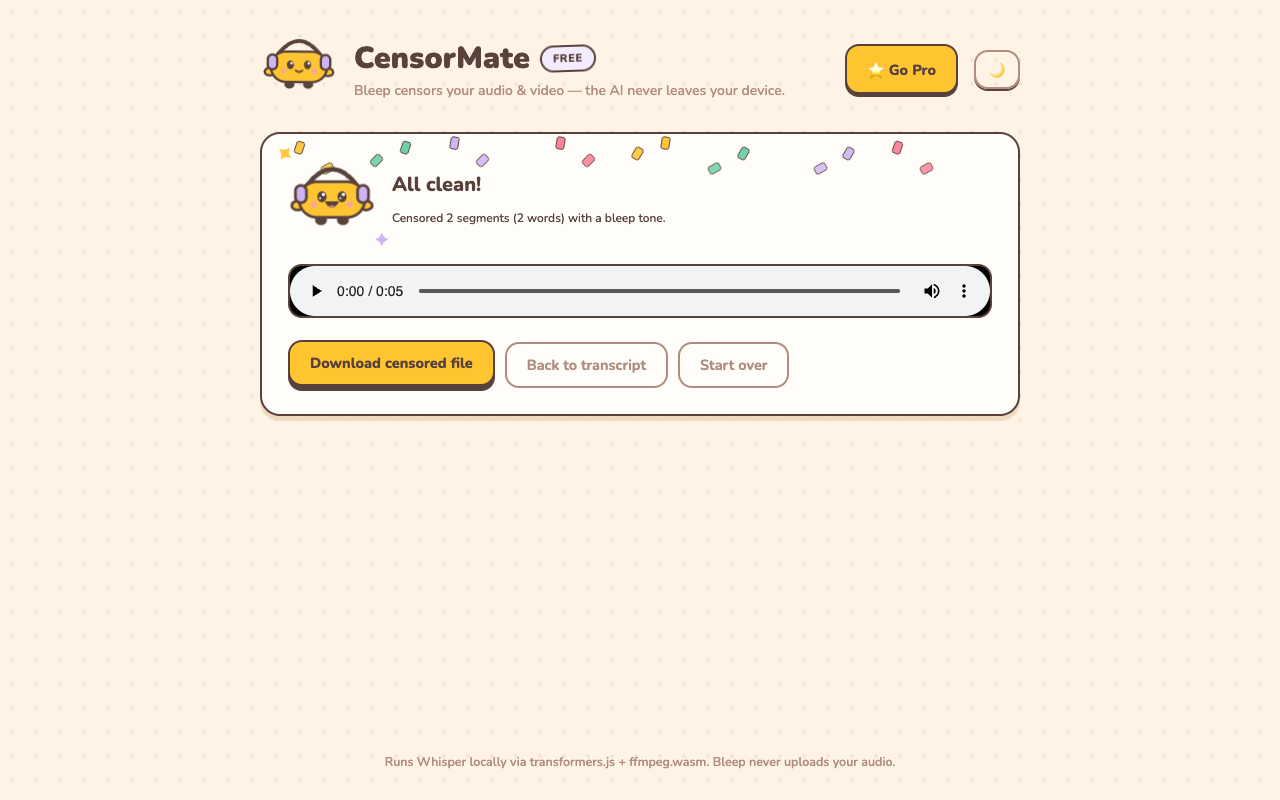
Clean version ready — the original stays untouched on your drive.
💰 Protect your next upload's revenue — censor it free before YouTube's bots hear it.
Try CensorMate free🔒 Runs in your browser. Your footage is never uploaded to us — or anyone.
Method 2: Manual Censoring in a Video Editor
The traditional route, for when you’re already deep in a Premiere/Final Cut/Resolve session:
- Watch the full video, noting each profanity timestamp
- Razor-cut the audio at each word’s start and end
- Either delete the segment audio and insert a 1 kHz tone, or duck the clip and overlay the bleep
- Add tiny audio fades on each cut so the bleeps don’t click
- Re-render your export
Budget 1–2 hours for a typical 10-minute conversational video, and accept that tired ears miss words. Our tool comparison covers the editor options in detail.
YouTube-Specific Rules That Matter in 2026
The first 8–15 seconds are almost everything
YouTube’s classifier weights your intro far more heavily than the rest. Strong profanity up front is the fastest route to limited ads; the same word at minute 7 might pass. Censor the intro even when you leave mid-video language intact.
Censor before upload, not after
Re-uploading a fixed video resets its views, comments, and ranking signals. YouTube’s built-in trim editor is clumsy for audio work and still triggers re-review. Do it right the first time.
Audio isn’t the only signal
Titles, thumbnails, descriptions, tags, and even burned-in captions get scanned. A bleeped video with an uncensored f-word in its subtitle file can still get flagged — regenerate captions from the censored audio.
Self-certification is a trust system
Rate your content honestly in YouTube Studio. Consistent, accurate self-certification means fewer bot second-guesses over time.
Related guides: Avoid YouTube demonetization: complete guide · How to censor videos online · How to censor podcasts
Censor your videos in minutes — right in your browser
CensorMate finds and bleeps any word with on-device AI. Nothing is uploaded, ever. Free to start.
Try CensorMate free