Updated July 10, 2026 · CensorMate Blog
How to Censor Videos Online in 2026
You need certain words gone from a video — profanity before a YouTube upload, a name that shouldn’t be public, a client’s brand mention. In 2026 that’s a three-minute job, and it no longer requires uploading your private footage to some company’s server. This tutorial shows exactly how, with screenshots.
Why Censor Videos?
- Monetization — profanity is the #1 cause of YouTube demonetization
- Reach — platforms suppress or age-restrict videos flagged for strong language
- Sponsors — brand-safety clauses are now standard in creator contracts
- Audience — family-friendly cuts open your content to schools, kids’ devices, and corporate settings
- Privacy — sometimes the “bad word” is an address, a phone number, or your kid’s name
The Two Ways to Do It
1. Manual editing (the old way)
Scrub the timeline in Premiere, Final Cut, or Resolve. Find each word by ear, cut the audio, overlay a bleep tone, ripple through the mix. Budget 2–4 hours for a 20-minute video, more if the audio is conversational. Accuracy depends entirely on your ears at 1 a.m.
2. AI-powered automatic censoring (the modern way)
Speech recognition transcribes every word with timestamps, matches your keyword list, and rebuilds the audio with bleeps in exactly the right places. Minutes instead of hours — and with CensorMate specifically, the AI runs inside your browser, so your raw footage never leaves your machine. That matters when your unedited footage contains exactly the words you don’t want in public.
✂️ Censor your first video right now — free, no account, nothing uploaded.
Open CensorMateWorks with MP4, WebM, MOV, MKV, MP3, WAV and more.
Step-by-Step: Censoring a Video with CensorMate
Step 1: Drop in your video and list your words
Drag your file into CensorMate and type the words or phrases to censor — or upload a whole keyword list as a text file. Multi-word phrases work, matching ignores punctuation and capitalization, and there’s a built-in profanity pack if you don’t want to type curse words at your desk.
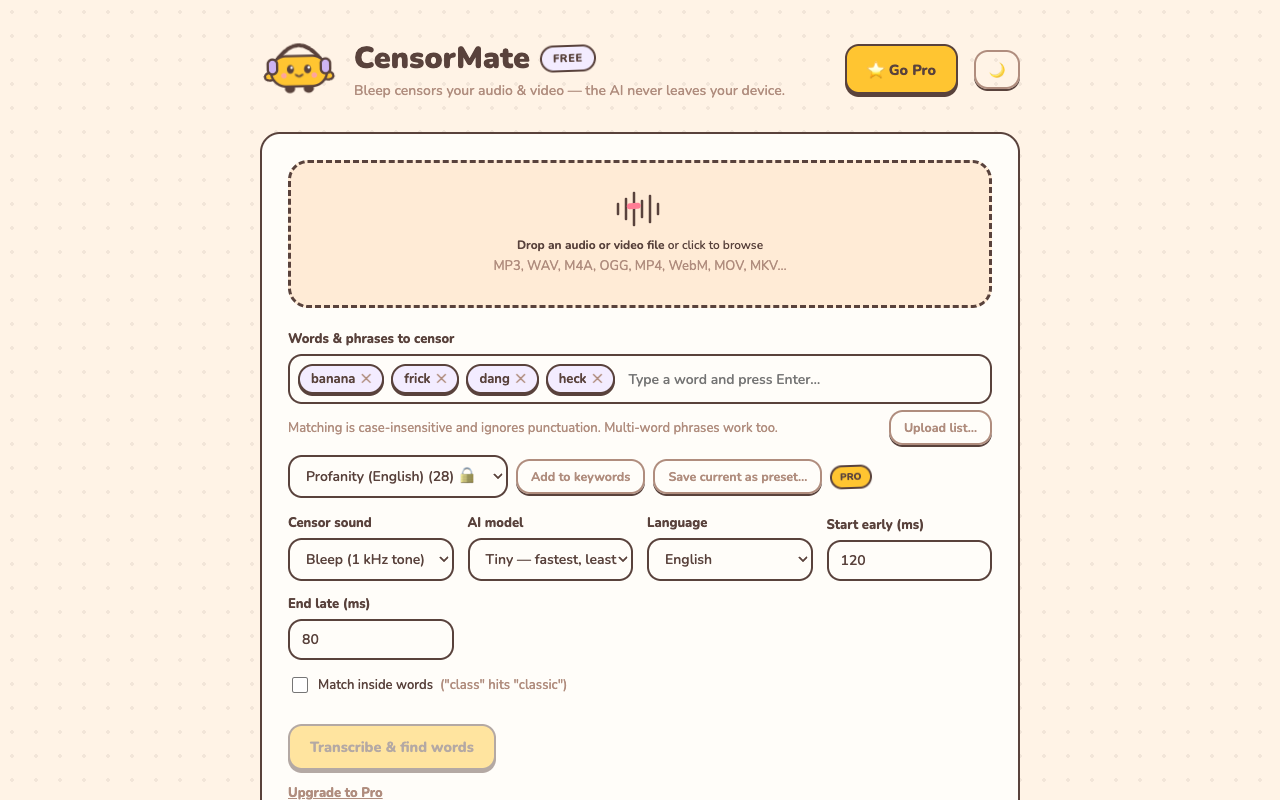
Everything on one screen: file, word list, bleep-or-silence, and AI model choice.
Step 2: Let the AI listen
Click Transcribe & find words. The first run downloads the AI model (then it’s cached — later runs start instantly), and transcription typically runs at about real-time speed or faster on a modern machine. Everything happens locally.
Step 3: Review the transcript
You get the full transcript with every matched word highlighted. This is the step cloud tools skip — and it matters, because speech recognition isn’t perfect. Click any word to censor it or spare it. Caught something the AI missed? Click it. False positive on “class”? Un-click it.
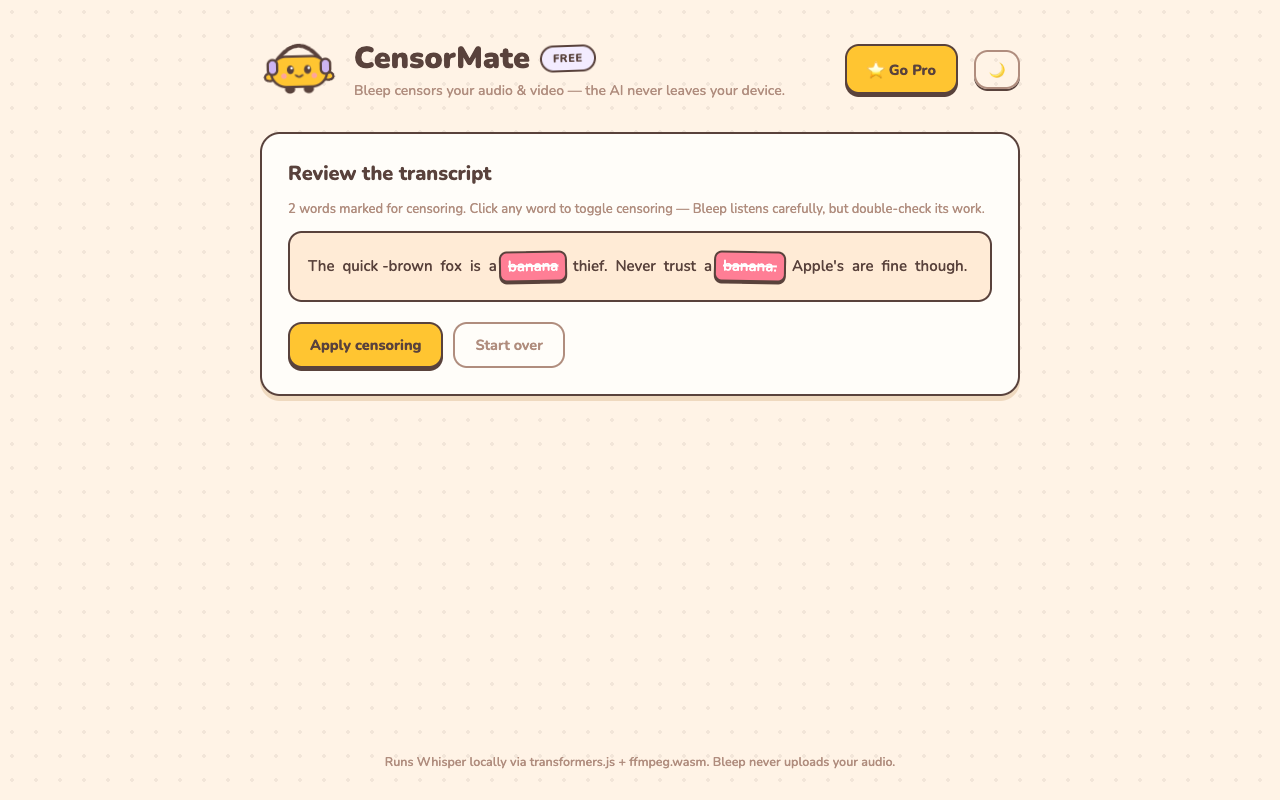
Word-level control before anything is changed — you have final say.
Step 4: Apply and download
Choose bleep (classic 1 kHz broadcast tone) or clean silence, hit Apply censoring, and download. Your video stream is copied untouched — no re-encoding, no quality loss — only the audio track is rebuilt with censored spans timed to the word.
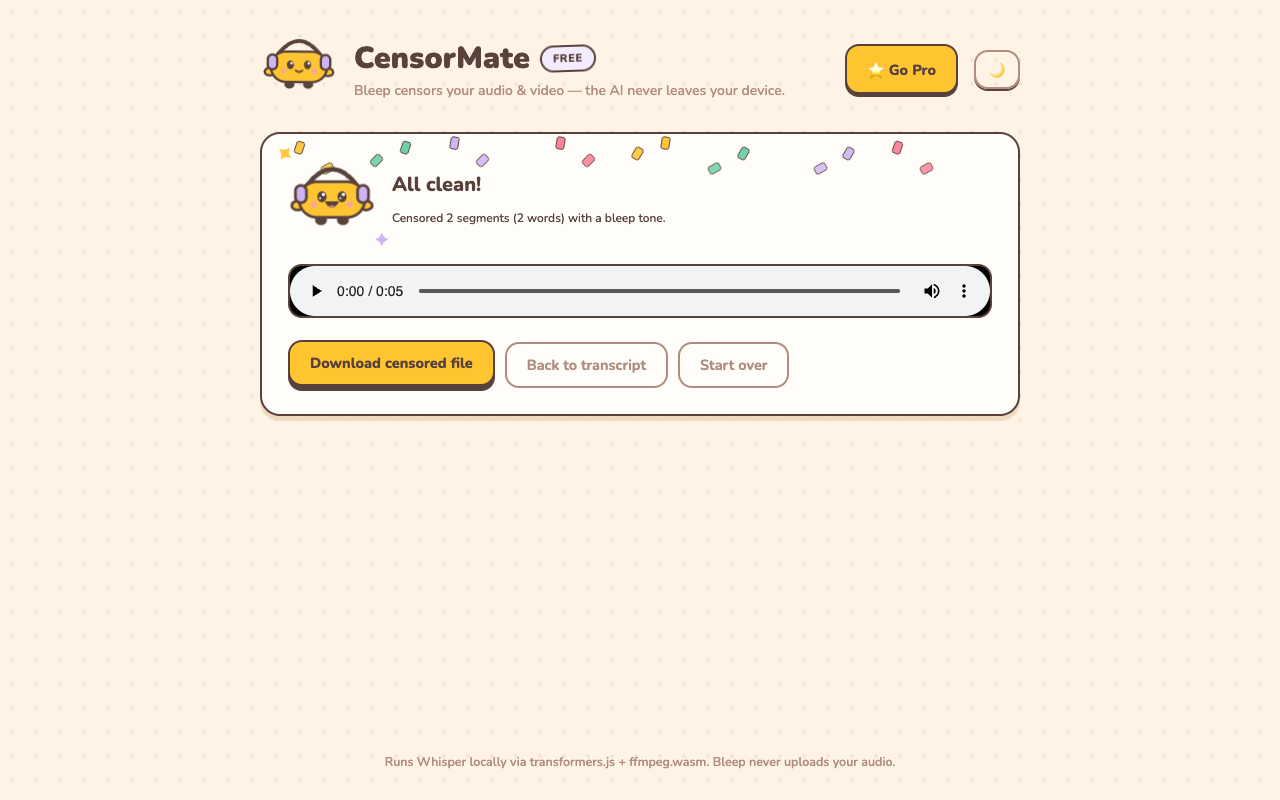
Preview before downloading — then it's ready for YouTube, class, or the client.
Best Practices
- Add word variants. “Damn” and “dammit” are different words to a transcript — or enable partial matching to catch both at once.
- Preview before publishing. The built-in player lets you spot-check each bleep.
- Pad generously for fast talkers. CensorMate’s timing controls let you widen each censored span by milliseconds if a word’s edge sneaks through.
- Keep your keyword list. CensorMate saves it automatically, so your next video takes even less time; Pro users can save multiple named lists.
What About Free?
Trying CensorMate is free: the AI transcribes your file (up to 10 minutes), highlights every match, and plays each bleep in place before you pay anything. Keeping the censored file is $4.99 for a 24-hour Day Pass with unlimited exports, or $3.99/mo. Pro ($3.99/mo or $79 lifetime) adds full-length videos, full censored-video export, the most accurate model, and keyword packs.
Related guides: Avoid YouTube demonetization · Remove profanity from YouTube videos · Best video censoring tools compared
Censor your videos in minutes — right in your browser
CensorMate finds and bleeps any word with on-device AI. Nothing is uploaded, ever. Free to start.
Try CensorMate free